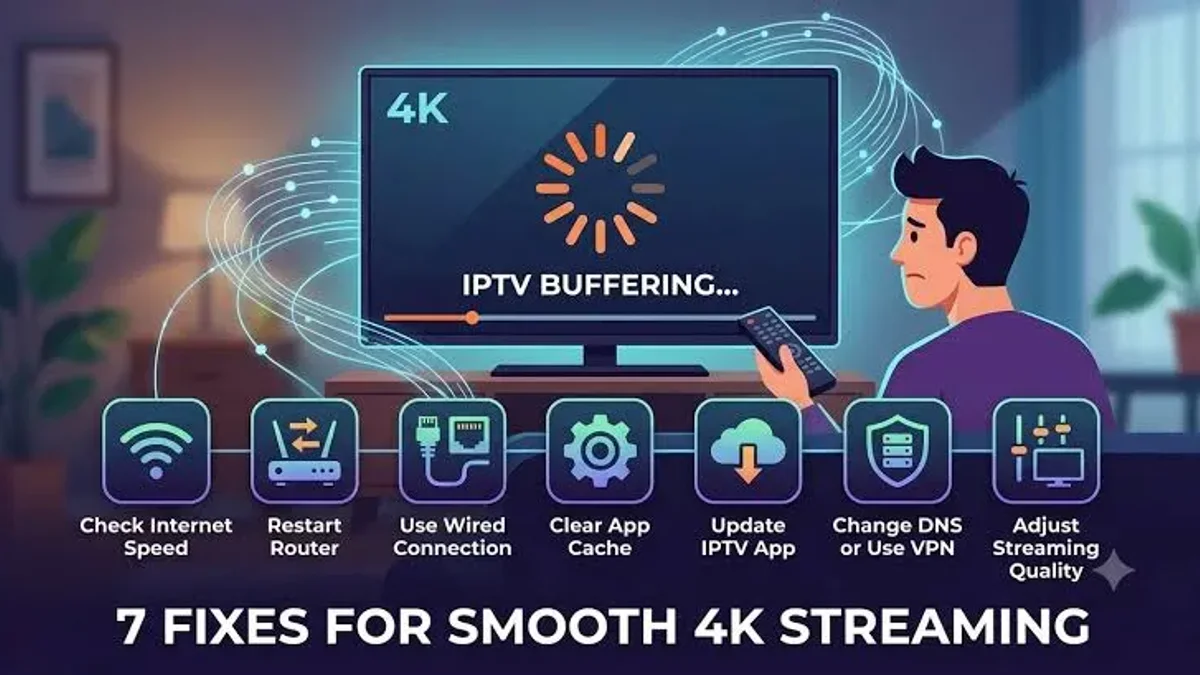
IPTV Buffering After a Few Minutes: Proven Fixes & Solutions
IPTV Buffering After a Few Minutes: Proven Fixes and Technical Solutions
Among all the frustrations that can plague an internet streaming setup, one specific issue stands out as uniquely bewildering: you select a channel, and it launches instantly. The picture is crisp, the audio is rich, and the broadcast plays without a single dropped frame for two, three, or four minutes. You settle back into your chair, confident that your connection is flawless. Then, without warning, the stream locks up. The video freezes into a still frame. The audio drops into silence. A spinning loading indicator appears. Five seconds later, the broadcast jumps backward by ten seconds, stutters erratically, and freezes again.
If your IPTV connection was completely broken, the channel would never load in the first place. If your internet download speed was simply too slow, the video would buffer immediately within the first three seconds of playback.
So why does an IPTV stream play perfectly for a few minutes before collapsing into an unwatchable cycle of buffering, stuttering, and looping?
This delayed failure symptom—often referred to as the 2-to-5-minute streaming trap—is one of the most widely misunderstood phenomena in the IPTV ecosystem. It is almost never a random coincidence; rather, it is the predictable downstream consequence of specific technical bottlenecks: time-decayed ISP traffic shaping via Deep Packet Inspection (DPI), client-side RAM saturation and memory leaks, Maximum Transmission Unit (MTU) packet fragmentation, server-side socket keep-alive drops, or uncalibrated player buffer queues.
In this technical and practical master guide, we deconstruct the exact mechanics of delayed streaming failure, analyze the five primary engineering culprits responsible for 2-minute buffering cycles, provide an actionable, step-by-step diagnostic workflow, and deliver proven technical fixes to restore permanent, uninterrupted playback across all your streaming devices.
Stream 2026 NFL Games in 4K & 60FPS
Get instant access to over 50,000 live sports channels, 120,000+ movies & series, and 24/7 priority sports coverage across all your favorite devices.
1. The Physics of the Initial Stream: Why Does It Play Smoothly at First?
To solve the puzzle of why an IPTV stream buffers only after several minutes have elapsed, one must understand how digital video players establish and initialize an internet streaming session.
``` ┌────────────────────────────────────────────────────────────────────────┐ │ THE ANATOMY OF A DELAYED STREAM CRASH │ ├────────────────────────────────────────────────────────────────────────┤ │ │ │ MINUTE 0:00 – 0:30 (THE INITIAL BURST PHASE): │ │ • Player initiates TCP connection & requests stream chunks │ │ • Device RAM is completely empty; buffer fills rapidly │ │ • ISP traffic shaper sees "initial web request" ──> NO THROTTLING │ │ • Result: Flawless, crisp 4K/FHD playback! │ │ │ │ MINUTE 1:00 – 2:30 (THE SUSTAINED STREAM TRANSITION): │ │ • Continuous high-bandwidth video packets fill device RAM │ │ • ISP Deep Packet Inspection identifies continuous streaming flow │ │ • Low-memory streaming stick (1GB RAM) approaches memory exhaustion │ │ • MTU packet fragmentation begins dropping retransmission packets │ │ │ │ MINUTE 3:00+ (THE BREAKING POINT): │ │ • ISP throttles port bandwidth from 100 Mbps down to 3.5 Mbps │ │ • Device RAM overflows / Android Low Memory Killer triggers │ │ • Jitter buffer drains to zero ──> STREAM SUDDENLY FREEZES & LOOPS! │ │ │ └────────────────────────────────────────────────────────────────────────┘ ```
The Initial Burst Phase: The TCP Handshake and Empty Cache
When you first click on a channel:
- Empty System Memory: Your streaming device's RAM is completely clear of incoming stream data. The player application allocates a designated memory pool (the jitter buffer) to receive incoming video packets.
- TCP Slow-Start and Initial Server Burst: During connection initialization, streaming servers and Content Delivery Network (CDN) edge nodes intentionally transmit the first few video segments at maximum possible throughput to populate your device's buffer as quickly as possible.
- ISP Heuristic Delay: Modern telecom traffic shapers do not instantly throttle every data packet the microsecond it appears. When you initiate an HTTP/HTTPS connection, the ISP's automated monitoring system initially classifies it as a normal web request (such as downloading a web page or image).
During the first 60 to 120 seconds, your streaming hardware is working from a fully populated memory cache, while your ISP has not yet engaged its automated bandwidth throttles. The video looks and feels completely flawless.
The Sustained Playback Phase: The Breaking Point
However, streaming live video is not a one-time file download; it is a continuous, relentless torrent of high-bitrate data packets arriving at 60 frames per second.
As playback extends past the two-minute mark:
- If your ISP uses automated traffic inspection, their firewall flags the continuous multi-megabit data flow and drops your connection speed.
- If your streaming device has low internal memory (like a budget Amazon Firestick), uncollected garbage in the app's cache exhausts available RAM, causing the video decoder to choke.
- If your network has an MTU mismatch, fragmented packet queues back up until the buffer empties entirely.
The moment the incoming data rate falls below the playback consumption rate, your buffer hits zero bytes—and the stream freezes dead in its tracks.
2. Root Cause 1: ISP Deep Packet Inspection (DPI) and Heuristic Traffic Shaping
In over 60% of real-world scenarios where IPTV streams buffer consistently after 2 to 5 minutes, the root cause is Internet Service Provider (ISP) Bandwidth Throttling.
What Is Heuristic Traffic Shaping?
Modern Internet Service Providers do not simply throttle websites by domain name or static IP address. Instead, they deploy sophisticated hardware appliances (such as Sandvine, Cisco, or Allot DPI engines) placed directly at their central broadband gateways.
These appliances use heuristic behavioral flow analysis:
- When your streaming device requests video packets from an IPTV server, the connection runs over standard network ports (such as Port 80, Port 443, or Port 8080).
- The DPI system inspects the packet flow. It measures packet sizes (typically consistent 188-byte MPEG-TS packets or continuous 6-second HLS chunks), packet cadence, and total sustained bandwidth.
- If the connection continues transferring continuous data at 12 to 25 Mbps without interruption for more than 120 seconds, the automated traffic management algorithm flags the session as an unmanaged live video stream.
- The system activates an automated bandwidth step-down profile: it dynamically throttles the throughput of that specific connection down to 2 or 3 Mbps.
Because a Full HD or 4K sports stream requires 8 to 25 Mbps to sustain smooth 60fps playback, an artificial drop to 3 Mbps starves your video player of data. The stream freezes, attempts to reload, plays for another few seconds from a tiny trickle of data, and locks up again.
Why Standard Speed Tests Don't Reveal the Problem
A frequent source of confusion for subscribers is running a speed test immediately after their stream freezes:
- The user opens their smartphone or TV browser, runs a test on Speedtest.net or Fast.com, and sees a blazing result of "200 Mbps."
- The user concludes: "My internet speed is 200 Mbps, so the problem must be the IPTV server!"
This conclusion is incorrect. Internet Service Providers deliberately whitelist commercial speed test servers to ensure customer speed tests always report maximum tier speeds. While your general connection to a local speed test server runs at 200 Mbps, your specific connection to the international IPTV streaming server is being aggressively throttled in real time by the ISP's DPI engine.
3. Root Cause 2: Client-Side RAM Saturation and the Android Low Memory Killer
While ISP throttling is a network-side issue, the second most common cause of delayed buffering originates entirely inside your streaming hardware's internal memory architecture.
Streaming Stick RAM Constraints
Popular budget streaming devices—such as entry-level Amazon Fire TV Sticks, Roku boxes, and cheap generic Android TV dongles—are engineered under extreme cost constraints:
- They typically feature only 1.0GB to 1.5GB of total system RAM.
- The underlying Android operating system, Amazon Fire OS background services, analytics daemons, and system UI processes permanently consume between 650MB and 850MB of that RAM.
- This leaves an extraordinarily slim operational margin of 150MB to 350MB of free RAM for your entire IPTV player software, video decoder, EPG database, and video buffer cache.
``` ┌────────────────────────────────────────────────────────────────────────┐ │ STREAMING STICK RAM DEPLETION (1.0GB RAM) │ ├────────────────────────────────────────────────────────────────────────┤ │ │ │ [Fire OS / Android System Services & Daemons: 750MB] │ │ ████████████████████████████████████████████████ │ │ │ │ [IPTV Player App UI, Graphics & EPG Cache: 150MB] │ │ ██████████ │ │ │ │ [FREE OPERATIONAL RAM FOR VIDEO BUFFER: ~100MB] │ │ ██████ │ │ │ │ WHAT HAPPENS DURING PLAYBACK PAST MINUTE 3: │ │ • High-bitrate 4K stream fills the 100MB buffer in seconds │ │ • Memory leak / uncollected video garbage saturates remaining RAM │ │ • Free RAM drops to ZERO (< 15MB) │ │ • Android "Low Memory Killer" (LMK) process violently terminates │ │ background decoders or forces the player to flush its cache! │ │ • RESULT: STREAM IMMEDIATELY FREEZES, DROPS AUDIO, OR CRASHES │ │ │ └────────────────────────────────────────────────────────────────────────┘ ```
Memory Leaks and Garbage Collection Failures
When an IPTV player streams live television, it constantly receives data packets, decodes them into uncompressed video frames, renders them to the screen, and must immediately discard the expired frames from memory.
In poorly coded player applications, or when a high-bitrate stream has erratic timestamp headers:
- The software fails to cleanly deallocate expired video chunks from system memory (a classic memory leak).
- As the minutes tick by, the player's RAM footprint balloons from 100MB to 200MB, then 300MB.
- Around the three-to-five-minute mark, available device RAM drops below the operating system's critical safety threshold (typically 20MB).
- The Android kernel's Low Memory Killer (LMK) daemon intervenes to prevent the entire device from crashing. It aggressively kills background processes, forces the IPTV player to purge its active playback buffer, and cuts CPU cycles.
- Deprived of its memory buffer, the player halts video rendering. The picture freezes, the stream loops back to the last cached keyframe, and the user experiences severe stuttering.
4. Root Cause 3: Maximum Transmission Unit (MTU) Mismatch and Packet Fragmentation
One of the most insidious, technically obscure causes of delayed buffering is an unaligned Maximum Transmission Unit (MTU) on your home broadband network.
What Is MTU?
The Maximum Transmission Unit (MTU) defines the largest physical data packet size (measured in bytes) that an internet-connected device can transmit across a network interface without fragmenting the packet into smaller pieces.
- The universal standard MTU for standard Ethernet and broadband internet is 1500 bytes.
- If your Internet Service Provider connects via PPPoE (common in DSL and fiber connections), the maximum allowable MTU is reduced to 1492 bytes (or 1452 bytes) due to protocol encapsulation headers.
- If you route your streaming connection through an encrypted VPN tunnel, the VPN's encryption overhead (WireGuard or OpenVPN headers) further shrinks the effective MTU to 1420 or 1380 bytes.
How MTU Mismatch Triggers 2-Minute Buffering
When your streaming device attempts to receive a continuous stream of large 1500-byte video packets across a network connection that only allows 1420 bytes:
- Every single video packet arriving at your router exceeds the maximum allowable packet size.
- The router is forced to split every single packet into multiple smaller fragments (a process called packet fragmentation).
- The receiving device must reassemble these fragmented micro-packets in exact sequential order before the video decoder can process a single frame of video.
During the first 60 seconds of streaming, your device's network buffer can keep up with the reassembly overhead. However, as thousands of fragmented packets arrive every second, the device's network stack suffers from packet queue saturation.
Eventually, a fragmented sub-packet is dropped. Under standard TCP protocol rules, the device must pause playback, send a retransmission request, and wait for the missing fragment to arrive. By minute three, the reassembly queue backs up entirely, triggering catastrophic buffer depletion. The stream freezes, loops backward, or drops the connection completely.
5. Root Cause 4: Server-Side Keep-Alive Socket Timeouts and Concurrency Locks
Not all delayed buffering stems from your home network or streaming stick. In specific situations, the failure occurs at the server or middleware layer.
The 3-Minute Keep-Alive Timeout
When an IPTV player connects to a streaming server via HTTP, it opens an active TCP network socket. To maintain this socket without having to reconnect for every individual video chunk, the connection uses an HTTP header parameter called Connection: keep-alive.
On poorly configured or overloaded IPTV server clusters:
- The web gateway (e.g., Nginx or LiteSpeed reverse proxy) maintains a strict internal client inactivity or keep-alive timeout (frequently set to 180 seconds or 300 seconds).
- Some IPTV player apps fail to send periodic background heartbeat pings (token verification requests) back to the server while streaming.
- When the 180-second timer expires, the server assumes the client has disconnected or gone dormant. The server cleanly closes the TCP socket.
- Your streaming device continues playing the few seconds of video remaining in its local buffer. The moment that buffer empties, the stream abruptly dies. If the player has an auto-reconnect feature, it re-establishes the connection three seconds later, causing the video to loop backward and resume playing for another three minutes until the next timeout.
Duplicate Ghost Connection Conflicts
Most standard IPTV subscriptions allow one active connection at a time.
- If you recently switched devices (e.g., you were watching on your smartphone during your commute and then turned on your living room television), your previous session may remain active as a "ghost connection" on the server for several minutes.
- When the server's authentication daemon executes its automated concurrency sweep (typically every 2 to 5 minutes), it detects two simultaneous IP requests on a single-connection account.
- The server automatically terminates the newer stream or throttles its bandwidth to force a disconnect, resulting in immediate freezing.
6. The 6-Step Technical Fix Master Plan
Now that we have diagnosed the exact engineering mechanisms behind delayed stream freezing, follow this comprehensive, step-by-step remediation plan to permanently eliminate buffering cycles.
``` ┌────────────────────────────────────────────────────────┐ │ THE BUFFER-FREE REMEDIATION PLAYBOOK │ ├────────────────────────────────────────────────────────┤ │ │ │ Fix 1: Deploy Encrypted WireGuard VPN (Defeats DPI) │ │ ▼ │ │ Fix 2: Optimize Maximum Transmission Unit (MTU 1420) │ │ ▼ │ │ Fix 3: Switch Stream Format: MPEG-TS vs HLS (.ts) │ │ ▼ │ │ Fix 4: Calibrate Player Buffer to Medium (3-5s) │ │ ▼ │ │ Fix 5: Force Close Background Apps & Flush Cache │ │ ▼ │ │ Fix 6: Enable Hardware Plus (HW+) Video Decoding │ │ │ └────────────────────────────────────────────────────────┘ ```
Fix 1: Deploy an Encrypted WireGuard VPN (Defeat ISP Throttling)
If your stream buffers consistently at the 2-to-3-minute mark during live sports or evening peak hours, activating a fast, encrypted VPN is the most powerful single fix available.
- Install a premium VPN client directly on your streaming device (e.g., Surfshark, NordVPN, ExpressVPN, or IPVanish).
- Open the VPN app's settings and navigate to the VPN Protocol menu.
- Change the protocol from default or OpenVPN TCP to WireGuard (or OpenVPN UDP). WireGuard operates using lightweight modern cryptography, delivering up to 300% faster throughput and near-zero latency impact compared to legacy VPN protocols.
- Connect to a server geographically close to your actual location (to minimize ping times).
- Launch your IPTV player and test the stream. If the 3-minute buffering vanishes completely, your ISP's Deep Packet Inspection engine was the primary culprit.
Fix 2: Optimize Your Network MTU Size
Eliminate packet fragmentation by aligning your router and device MTU settings:
- Test for Packet Fragmentation (on PC/Mac connected to your home network):
- Open Command Prompt or Terminal and type: ```bash ping -f -l 1472 8.8.8.8 ```
- If the ping returns "Packet needs to be fragmented but DF set", lower the number by 10 (e.g., 1462, 1452, 1442) until the ping succeeds with zero fragmentation.
- Add 28 bytes (IP + ICMP headers) to that successful number. For example, if 1442 succeeds:
1442 + 28 = 1470. That is your optimal MTU.
- Apply the MTU Setting:
- Log into your home router's admin dashboard (typically
192.168.1.1or192.168.0.1). - Navigate to WAN / Internet Settings.
- Change MTU from 1500 to 1452 (for standard broadband/fiber) or 1420 (if running a router-level VPN).
- Save and reboot your router. Packet fragmentation will immediately cease across all household streaming devices.
- Log into your home router's admin dashboard (typically
Fix 3: Switch Stream Output Format from HLS to MPEG-TS
In many cases, delayed buffering occurs because the streaming software struggles with the segmentation boundaries of HLS (.m3u8) playlists.
- Launch your IPTV application (such as TiviMate or IPTV Smarters Pro).
- Open Settings > Playlists (or Accounts) and select your active provider profile.
- Locate the setting labeled Stream Format or Output Format.
- Change the format from default HLS (.m3u8) to MPEG-TS (.ts).
- Click Save and reload the channel directory.
- Why this works: MPEG-TS delivers video as a continuous transport stream of standardized 188-byte packets rather than discrete multi-second file chunks. This eliminates the chunk-boundary connection resets that frequently trigger 2-minute buffer timeouts in older player decoders.
Fix 4: Calibrate the Player's Buffer Cache Setting
Many users assume that increasing their buffer size to "Very Large" will prevent buffering. In reality, on budget streaming sticks with limited RAM, an oversized buffer accelerates memory exhaustion!
- Open your player app's playback settings:
- In TiviMate: Go to Settings > Playback > Buffer size.
- In IPTV Smarters Pro: Go to Settings > Player Settings > Buffer Size.
- Select Medium (or Normal).
- Why this works: A Medium buffer reserves roughly 3 to 5 seconds of video in memory. This provides enough cushion to absorb momentary Wi-Fi jitter spikes while remaining small enough to never trigger Android's Low Memory Killer or deplete system RAM.
Fix 5: Force-Close Background Apps and Free Device Storage
Prevent memory saturation by eliminating dormant background processes:
- On Amazon Fire TV:
- Install the free utility Background Apps and Processes List from the Amazon Appstore.
- Launch the utility and force-close all background apps (Netflix, Prime Video, screensavers, app store updaters).
- Go to Settings > Applications > Manage Installed Applications > [Your IPTV Player] and click Clear Cache.
- Verify that your device has at least 1.5GB to 2.0GB of available free internal storage. If storage is below 500MB, the operating system cannot allocate swap memory, resulting in severe video stuttering.
Fix 6: Switch Video Decoder to Hardware Plus (HW+)
Prevent CPU overheating by enforcing proper graphics hardware acceleration:
- Open your player's Settings > Playback menu.
- Locate Video Decoder.
- If it is currently set to Software (SW), immediately switch it to Hardware (HW).
- If you are using a modern device (such as a Firestick 4K Max, Nvidia Shield, or Google TV) and your app supports it, select Hardware Plus (HW+) or ExoPlayer.
- If audio plays while video freezes, turn Audio Passthrough to OFF to prevent audio handshake deadlocks.
7. Advanced Device-Specific Calibrations
To ensure peak performance on specific operating systems, implement these targeted tweaks:
Amazon Fire TV Stick Power & Heat Calibration
- Never use your TV's USB port for power: A television USB port typically outputs only 0.5A to 1.0A of current. During heavy 4K decoding, the Firestick processor demands up to 1.8A. Power starvation causes the CPU to throttle clock speeds, triggering video stuttering. Always use the manufacturer's original AC wall adapter.
- Install the HDMI Extender Cable: The short flexible HDMI cable included in your Firestick box moves the stick several inches away from your TV's hot chassis, reducing ambient operating temperatures by up to 12°C and preventing thermal throttling.
Android TV & Google TV Developer Options Tweak
- Navigate to Settings > Device Preferences > About.
- Scroll down to Build and click it seven times continuously until a message announces: "You are now a developer!"
- Press back and open the new Developer Options menu.
- Scroll down to the Apps category:
- Find Background process limit and change it from Standard limit to At most 2 processes.
- This permanently stops dormant apps from silently consuming memory in the background while you stream live TV.
8. Root Cause Comparison Table
Use this reference table to match your exact symptoms with their root cause and confirmed solution:
| Observable Playback Symptom | Underlying Root Cause | Confirmed Engineering Remedy |
|---|---|---|
| Plays 2–3 mins, freezes, loops back 10 seconds | ISP Deep Packet Inspection (DPI) Throttling | Enable WireGuard VPN + Change DNS to 1.1.1.1 |
| Plays 3–5 mins, audio stutters, app crashes to home screen | Client Device RAM Exhaustion (Low Memory Killer) | Clear App Cache, Force-Close Background Apps, Set Buffer to Medium |
| Plays 2 mins, freezes dead with infinite spinning circle | MTU Mismatch & Severe Packet Fragmentation | Lower Router MTU to 1452 or 1420 |
| Plays exactly 3 mins on the dot, drops connection completely | Server Keep-Alive Socket Timeout | Switch Stream Output Format from HLS to MPEG-TS (.ts) |
| Plays 10 mins smoothly, then progressively slows down & lags | Device Thermal Throttling (Hardware Overheating) | Use HDMI Extender, Connect AC Wall Power Brick |
| Video freezes at 2 mins, but audio commentary continues uninterrupted | Video Decoder Buffer Desync | Switch Video Decoder from Software (SW) to Hardware (HW) |
9. When Is Delayed Buffering the Service Provider’s Fault?
While the vast majority of delayed buffering issues are resolved through local network and device optimization, there are instances where the service provider's infrastructure is genuinely responsible:
- Aggressive CDN Edge Concurrency Caps: Some budget IPTV sellers configure their edge servers to terminate connections that stream continuously for more than 180 seconds in order to artificially balance load across their limited bandwidth pipes.
- Uncached Origin Re-Encoding: If a provider is dynamically re-encoding live feeds on low-powered virtual servers, their server CPU may suffer from progressive memory leaks, causing the stream to degrade in cycles.
- Overcrowded Subscriber Nodes: When an IPTV seller packs 5,000 active connections onto a server provisioned for only 1,000 users, packet queues inevitably stall.
The Frixplay IPTV Stability Guarantee
At Frixplay IPTV, our infrastructure is built to eliminate periodic buffering cycles:
- Dedicated High-Capacity CDN POPs: Streams are delivered via globally distributed edge nodes engineered with massive bandwidth reserves.
- Persistent Socket Architecture: Our streaming gateways support long-lived, un-throttled TCP and UDP connections with zero artificial time limits.
- Pure Master Feed Transcoding: All channels are ingested via enterprise satellite teleports and transcoded by dedicated GPU clusters running optimized, leak-free HEVC pipelines.
If you have implemented the local fixes in this guide but your current provider still buffers every three minutes, upgrade your streaming experience on our subscription pricing page.
Frequently Asked Questions
Final Thoughts and Next Steps
Experiencing delayed buffering every few minutes is one of the most annoying hurdles in modern cord-cutting, but it is entirely solvable. By diagnosing whether your bottleneck stems from ISP packet throttling, streaming stick memory exhaustion, or network MTU fragmentation, you can systematically apply the proven engineering remedies detailed in this guide to achieve pristine, uninterrupted streaming.
To ensure your home entertainment is supported by world-class infrastructure:
- Review our high-stability, anti-freeze streaming subscriptions on our pricing page.
- Explore our expansive channel directory featuring over 50,000 live channels and 4K sports networks.
- Check out our comprehensive device installation and setup guide for step-by-step app configuration walkthroughs.
- Need personal assistance diagnosing a stubborn network issue? Contact our technical support team 24/7 through our contact page for expert help.

![Frixplay IPTV – IPTV vs Streaming Services: Complete Cord-Cutting Guide [2026]](/blog/iptv-vs-streaming-services.webp)