Why IPTV Keeps Freezing and How to Fix It: Complete Guide
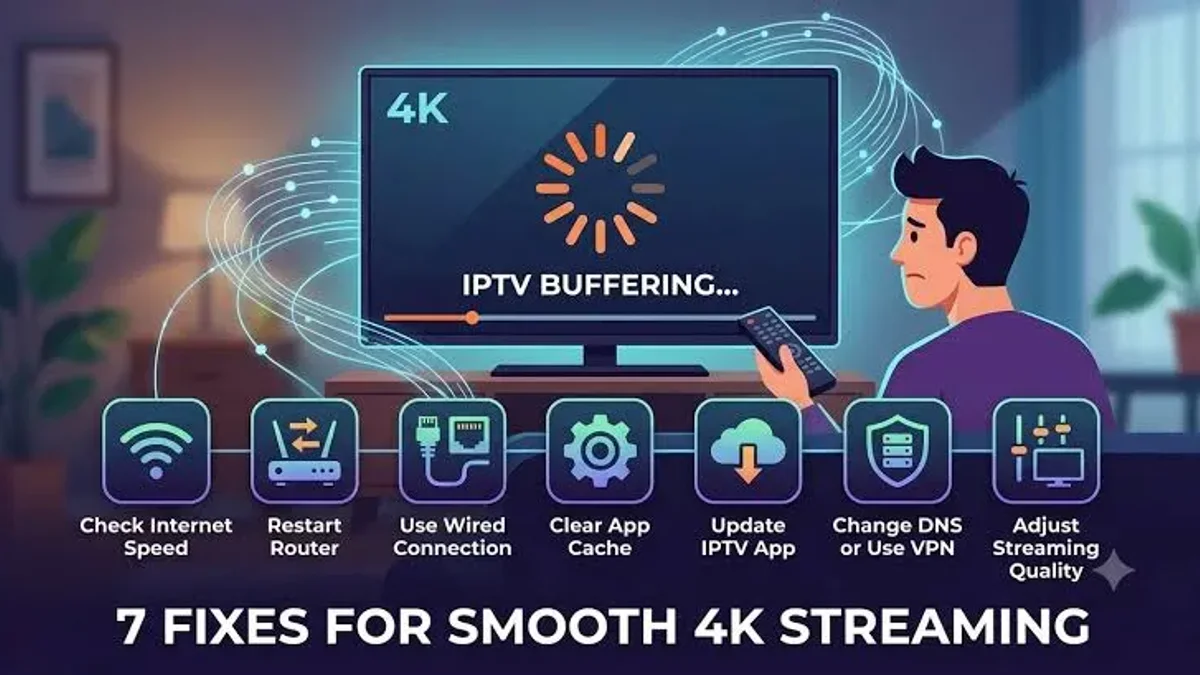
Why IPTV Keeps Freezing and How to Fix It: The Complete Diagnostic Guide
There is nothing quite as infuriating as settling into your sofa to watch a critical live sporting event, championship fight, or the season finale of your favorite drama, only for the broadcast to suddenly halt. The motion freezes into a motionless frame. A spinning loading wheel appears in the center of your screen. Five seconds later, the stream stutters forward, skips two crucial plays, and freezes again.
When an IPTV stream stutters or locks up, the knee-jerk reaction for most viewers is to immediately blame their service provider. However, in the vast majority of real-world cases, video freezing is not caused by server failures. Instead, it is the downstream consequence of a fragile chain of interconnected technical factors: Wi-Fi radio frequency interference, local packet jitter, Internet Service Provider (ISP) bandwidth throttling, depleted streaming stick RAM, misconfigured player video decoders, or uncalibrated network buffer sizes.
Because live Internet Protocol Television delivers uncompressed or lightly compressed video packets in real time without the multi-minute pre-caching cushions used by platforms like Netflix, even a momentary disruption in packet delivery can cause your video player to stall.
The good news is that virtually every cause of IPTV freezing can be diagnosed, isolated, and permanently resolved. In this definitive, engineering-backed troubleshooting guide, we walk you through the anatomy of stream stuttering, analyze the five primary culprits behind playback interruptions, provide an actionable 7-step diagnostic playbook, and share advanced network calibration techniques to guarantee rock-solid, buffer-free 4K streaming.
Stream 2026 NFL Games in 4K & 60FPS
Get instant access to over 50,000 live sports channels, 120,000+ movies & series, and 24/7 priority sports coverage across all your favorite devices.
1. The Diagnostic Triage: Identifying the Exact Symptom
Before adjusting router settings or clearing app caches, you must properly identify the specific nature of your streaming issue. Different playback symptoms point to completely different technical root causes.
``` ┌────────────────────────────────────────────────────────────────────────┐ │ IPTV FREEZING DIAGNOSTIC MATRIX │ ├────────────────────────────────────────────────────────────────────────┤ │ │ │ SYMPTOM A: Micro-Stuttering (Audio continues, video drops frames) │ │ PRIMARY CAUSE: Video Decoder Mismatch / Hardware CPU Overheating │ │ QUICK FIX: Switch Decoder from Software (SW) to Hardware (HW) │ │ │ │ SYMPTOM B: Periodic Freeze Every 2 to 5 Minutes (Buffer Loops) │ │ PRIMARY CAUSE: ISP Deep Packet Inspection (DPI) Throttling │ │ QUICK FIX: Activate Encrypted VPN (WireGuard) / Change DNS to 1.1.1.1 │ │ │ │ SYMPTOM C: Infinite Spinning Wheel (Stream never resumes) │ │ PRIMARY CAUSE: Complete TCP Socket Timeout / Wi-Fi Packet Loss │ │ QUICK FIX: Switch to 5GHz Wi-Fi or Hardwired Ethernet Cable │ │ │ │ SYMPTOM D: Freezing on ONLY ONE Specific Channel │ │ PRIMARY CAUSE: Upstream Broadcast Source Glitch / Local Server Node │ │ QUICK FIX: Switch to Backup Channel Feed (FHD / HD / 4K Alternate) │ │ │ └────────────────────────────────────────────────────────────────────────┘ ```
Symptom A: Micro-Stuttering and Frame Dropping
- What Happens: The audio track plays continuously without interruption, but the video motion looks jerky, robotic, or skips every few seconds.
- What It Means: This is almost never an internet speed problem. It indicates that your streaming device's processor (CPU) is overwhelmed and cannot decode the incoming video frames fast enough to maintain 60 frames per second.
Symptom B: The Periodic 2-to-5-Minute Freeze
- What Happens: You select a channel, and it streams in gorgeous 4K or 1080p for two to three minutes without a flaw. Then, like clockwork, the picture locks up, buffers for 10 seconds, plays for another two minutes, and repeats.
- What It Means: This cyclic behavior is the signature footprint of ISP Bandwidth Throttling via Deep Packet Inspection (DPI) or an overflowing local memory buffer.
Symptom C: The Infinite Spinning Circle
- What Happens: The stream abruptly halts, the audio cuts out, and a spinning wheel appears and remains indefinitely until you manually change the channel and switch back.
- What It Means: The network connection between your client device and the streaming server dropped completely (socket timeout). This commonly stems from severe Wi-Fi packet loss, router NAT table exhaustion, or an IP conflict.
Symptom D: Channel-Isolated Freezing
- What Happens: A specific sports channel freezes constantly, but when you switch to international news or entertainment channels, they play flawlessly.
- What It Means: The issue is localized to that specific channel's broadcast source transcode or server uplink node. High-tier providers like Frixplay IPTV maintain redundant backup feeds (e.g., HD, FHD, and 4K variations) so you can seamlessly pivot to an alternate server feed.
2. Culprit 1: Local Network Congestion, Jitter, and Wi-Fi Interference
By far the most common cause of IPTV freezing originates inside the subscriber's own residence—specifically, the wireless local area network (WLAN).
The Fragility of Real-Time Video
When you watch a pre-recorded movie on Netflix or Disney+, the application silently downloads up to five minutes of upcoming video into your device's memory. If your Wi-Fi signal drops out for eight seconds while someone turns on a microwave oven, you never notice because the app simply reads from its deep pre-loaded cache.
Live television cannot buffer minutes in advance. By definition, live sports and live broadcasts are happening in real time. Your IPTV application can only maintain a rolling jitter buffer of 2 to 8 seconds.
Because of this razor-thin margin, your local connection requires continuous, uninterrupted data delivery.
The Problem with the 2.4 GHz Wi-Fi Band
Many households inadvertently connect their streaming televisions and Firesticks to the 2.4 GHz Wi-Fi frequency band. While 2.4 GHz signals travel through walls effectively, the spectrum is severely compromised:
- Extreme Congestion: In an urban or suburban neighborhood, your router competes with dozens of neighboring Wi-Fi networks on only three non-overlapping channels (Channels 1, 6, and 11).
- RF Interference: Bluetooth devices, cordless phones, smart home plugs, baby monitors, and microwave ovens operate on the exact same 2.4 GHz frequency.
- High Jitter: This continuous radio interference causes massive spikes in jitter (latency variance) and packet loss. Even if a speed test shows "30 Mbps," micro-bursts of packet loss will cause a live 15 Mbps IPTV stream to stutter constantly.
The Wi-Fi Solution: 5 GHz, 6 GHz, and Channel Optimization
To eliminate local wireless bottlenecks:
- Switch to 5 GHz or 6 GHz (Wi-Fi 6E/7): The 5 GHz band offers vastly wider channel spectrum and zero interference from household appliances. Ensure your streaming device is connected to the
YourNetwork_5GSSID. - Channel Selection: Log into your router's administrative dashboard and manually set your 5 GHz channel to an uncongested channel (such as Channel 36, 40, 44, or 48), avoiding dynamic auto-switching which causes momentary disconnects.
- Physical Ethernet Supremacy: For the absolute pinnacle of streaming reliability, eliminate wireless entirely. Connect your streaming box to your router using a physical Cat 6 Ethernet cable. A wired connection delivers 0.0% packet loss and rock-solid sub-millisecond jitter.
3. Culprit 2: ISP Throttling and Deep Packet Inspection (DPI)
If your stream freezes primarily during high-profile sporting events (such as Sunday football, Premier League derbies, or Saturday night UFC pay-per-views), your Internet Service Provider is likely artificially restricting your connection.
``` ┌────────────────────────────────────────────────────────────────────────┐ │ HOW ISP THROTTLING FREEZES YOUR STREAM │ ├────────────────────────────────────────────────────────────────────────┤ │ │ │ UNENCRYPTED STREAM (No VPN): │ │ [Your Device] ──> [ISP Gateway Router] ──> [IPTV Server] │ │ │ │ │ ▼ │ │ ISP Performs Deep Packet Inspection (DPI): │ │ "High-bitrate video stream detected on Port 8080!" │ │ ──> APPLIES ARTIFICIAL THROTTLE (Drops speed to 3 Mbps) │ │ ──> RESULT: SEVERE STREAM BUFFERING & FREEZING │ │ │ ├────────────────────────────────────────────────────────────────────────┤ │ │ │ ENCRYPTED STREAM (With WireGuard VPN): │ │ [Your Device] ──> [Encrypted Tunnel] ──> [ISP] ──> [VPN] ──> [IPTV] │ │ │ │ │ ▼ │ │ ISP Performs Deep Packet Inspection: │ │ "Unreadable encrypted data packets on Port 51820" │ │ ──> CANNOT INSPECT CONTENT OR DESTINATION │ │ ──> PACKETS PASS AT FULL GIGABIT BROADBAND SPEED │ │ ──> RESULT: FLAWLESS 4K PLAYBACK WITH ZERO FREEZING │ │ │ └────────────────────────────────────────────────────────────────────────┘ ```
What Is Deep Packet Inspection (DPI)?
Internet Service Providers utilize sophisticated network management appliances (such as Cisco or Sandvine DPI systems) to analyze residential data traffic in real time.
DPI systems inspect packet headers and behavioral flow signatures. When thousands of subscribers in a specific city all begin pulling high-bandwidth video streams from streaming server IP ranges on Saturday afternoon, the ISP's automated congestion management protocols kick in:
- The ISP artificially throttles your connection speed on that specific IP port from 200 Mbps down to 3 Mbps.
- If you run a standard Ookla speed test during the freeze, the test will report "200 Mbps" because ISPs deliberately whitelist speed test servers.
- Meanwhile, your IPTV stream freezes every 30 seconds because the ISP is specifically throttling your video packets.
How a Virtual Private Network (VPN) Eliminates Throttling
A high-performance Virtual Private Network (VPN) running modern encryption protocols (such as WireGuard or OpenVPN UDP) completely shields your streaming traffic:
- Complete Encryption: All video data leaving your streaming box is encrypted with military-grade AES-256 or ChaCha20 cipher algorithms before it ever reaches your ISP.
- Total DPI Invisibility: Your ISP can only see unreadable encrypted packets traveling to a secure VPN server IP. They cannot see that you are streaming video, cannot see the destination server, and cannot identify the media protocol.
- Bypassing Congested Peering Points: In addition to stopping throttling, a top-tier VPN often routes your data across direct, high-bandwidth transit backbones that bypass the congested, overloaded routing exchanges used by your local telecom provider.
DNS Hijacking and DNS Server Fixes
Many ISPs also deploy transparent DNS proxies that intentionally delay or fail DNS queries to foreign streaming servers.
- The Fix: Change your streaming device or home router's DNS servers from your ISP's default servers to privacy-focused, ultra-fast public resolvers:
- Cloudflare DNS: Primary
1.1.1.1| Secondary1.0.0.1 - Google Public DNS: Primary
8.8.8.8| Secondary8.8.4.4
- Cloudflare DNS: Primary
4. Culprit 3: Hardware Limitations and Streaming Stick Overheating
Streaming high-bitrate Full HD and 4K video places intense computational strain on compact streaming hardware like Amazon Fire TV Sticks, Onn TV sticks, and low-cost Android TV dongles.
Thermal Throttling
Compact streaming sticks are encased in small plastic housings plugged directly into the hot rear exhaust of a television panel. When you stream high-bitrate 60fps sports for two hours:
- The System-on-Chip (SoC) temperature inside the stick climbs past 75°C (167°F).
- To prevent silicon damage, the internal processor automatically triggers thermal throttling, cutting its operating clock frequency in half (e.g., from 1.7 GHz down to 800 MHz).
- The throttled CPU can no longer process video frames in real time, causing the video to stutter and freeze while the audio continues.
The Solution:
- Use the official HDMI extender cable that came with your Firestick to position the device away from your TV's heat dissipation vents.
- Avoid powering streaming sticks through your television's USB service port; always plug the stick into a wall electrical outlet using the manufacturer's original AC power brick to prevent power starvation.
RAM Exhaustion and Background App Bloat
Entry-level streaming sticks typically feature only 1GB to 1.5GB of total RAM. Over time, apps like Netflix, YouTube, screensavers, and analytical telemetry processes accumulate in memory:
- When your IPTV player attempts to allocate a 50MB RAM buffer to prevent stream freezing, the operating system rejects the allocation due to insufficient free RAM.
- The player runs out of buffer memory, forcing an instantaneous video stutter.
The Solution:
- Install an app management utility (such as Background Apps and Processes List on Firestick) and force-close dormant background applications.
- Regularly restart your streaming device to flush volatile memory.
5. Culprit 4: Video Decoder and Audio Codec Mismatches
Inside your IPTV player software (such as TiviMate, IPTV Smarters Pro, or IBO Player), the video engine can decompress incoming video streams using two fundamentally different methods.
| Decoder Setting | Processing Engine | CPU Utilization | Compatibility | Stability on High-Bitrate Feeds |
|---|---|---|---|---|
| Hardware (HW) | Dedicated GPU Video ASIC | Low (5% – 15%) | Modern H.264 / HEVC | Extremely Stable & Smooth |
| Hardware Plus (HW+) | Enhanced GPU Engine | Low (5% – 20%) | Modern Formats | Exceptional for 4K 60fps |
| Software (SW) | General CPU Emulation | Extremely High (90% – 100%) | Universal / Obscure codecs | Prone to Overheating & Freezing |
The Software Decoder Pitfall
If your player's video decoder is mistakenly configured to Software (SW):
- Your device attempts to calculate millions of compressed pixels using raw software mathematical calculations on the general CPU cores.
- The CPU runs at 100% capacity, temperature spikes, frames drop, and playback locks up within minutes.
- The Fix: Open your player's playback settings and ensure the Video Decoder is explicitly set to Hardware (HW) or Hardware Plus (HW+). This offloads decompression to the device's specialized graphics chip.
Audio Passthrough Glitches
In many cases, an apparent video freeze is actually triggered by an audio sync stall. When a broadcast transmits in multi-channel Dolby Digital Plus (E-AC-3), and your television does not natively support Dolby decoding, the player's internal audio pipeline stalls waiting for a handshake, pausing the video stream in the process.
- The Fix: In your player's audio settings, toggle Audio Passthrough to OFF, allowing the player to downmix multi-channel sound into universal stereo (PCM) format.
6. Culprit 5: Uncalibrated Player Buffer Settings
Every professional IPTV player includes a Buffer Size (or Buffer Cache) setting. This parameter dictates how many seconds of upcoming video data the software stores in RAM before rendering it to the screen.
``` ┌────────────────────────────────────────────────────────────────────────┐ │ CALIBRATING THE PLAYER BUFFER SIZE │ ├────────────────────────────────────────────────────────────────────────┤ │ │ │ BUFFER SET TO "NONE" (0 Seconds): │ │ [Incoming Stream] ──> [Direct to Screen] │ │ • Zapping Speed: Extremely Fast (0.2 seconds) │ │ • Stability: DANGEROUSLY UNSTABLE │ │ • Result: Even a 100ms Wi-Fi blip causes the picture to freeze! │ │ │ │ BUFFER SET TO "VERY LARGE" (10+ Seconds): │ │ [Incoming Stream] ──> [Fills Massive RAM Cache] ──> [Screen] │ │ • Zapping Speed: Terrible (Channel takes 8 seconds to load) │ │ • Memory Risk: Triggers Out-Of-Memory crashes on budget sticks │ │ │ │ THE SWEET SPOT: "MEDIUM / NORMAL" (3 to 5 Seconds): │ │ [Incoming Stream] ──> [Safe 3-Second Cushion] ──> [Screen] │ │ • Zapping Speed: Crisp and snappy (0.8 - 1.2 seconds) │ │ • Stability: ROCK-SOLID │ │ • Absorbs local Wi-Fi jitter and packet spikes with zero freezing │ │ │ └────────────────────────────────────────────────────────────────────────┘ ```
Why "No Buffer" Causes Freezing
Some users mistakenly set their buffer to "None" or "0 milliseconds" in an attempt to achieve instant channel zapping. While channels load quickly, having zero buffer removes your safety net. If a single packet arrives 150 milliseconds late due to ordinary internet routing fluctuations, the player runs out of data to display and instantly halts the picture.
Why "Very Large Buffer" Is Equally Dangerous
Conversely, setting the buffer to "Very Large" (8 to 15 seconds) creates different problems:
- Every channel change requires a sluggish multi-second delay while the device downloads megabytes of video before starting.
- On memory-constrained devices (like a standard Firestick), maintaining a massive 15-second 4K video buffer can exhaust device RAM, crashing the app entirely.
The Recommended Calibration
- Standard Stable High-Speed Connections: Set buffer to Normal / 3 Seconds.
- Connections with Noticeable Wi-Fi Jitter or Mobile Hotspots: Set buffer to Large / 5 Seconds.
7. The 7-Step Troubleshooting Playbook to Stop Freezing
Follow this proven, step-by-step diagnostic sequence to isolate and eliminate IPTV freezing permanently.
``` ┌────────────────────────────────────────────────────────┐ │ THE 7-STEP BUFFER-FREE ACTION PLAN │ ├────────────────────────────────────────────────────────┤ │ │ │ Step 1: Perform Full Power Cycle (Router & Device) │ │ ▼ │ │ Step 2: Run Real-Time Speed & Jitter Diagnostic │ │ ▼ │ │ Step 3: Clear Player App Cache & Free Device Storage │ │ ▼ │ │ Step 4: Calibrate Buffer to 3–5 Seconds │ │ ▼ │ │ Step 5: Switch Video Decoder to Hardware (HW / HW+) │ │ ▼ │ │ Step 6: Activate High-Speed WireGuard VPN │ │ ▼ │ │ Step 7: Update EPG and Switch to MPEG-TS Stream Type │ │ │ └────────────────────────────────────────────────────────┘ ```
Step 1: Perform a Full Network and Hardware Power Cycle
Do not simply press the power button on your remote control (which merely places the device into sleep mode).
- Unplug the power adapter of your internet router, modem, and streaming television box from the wall electrical outlet.
- Wait a full 60 seconds. This completely drains residual electrical charges in the capacitors, clearing volatile routing tables, flushing corrupt DNS caches, and forcing your ISP to assign a fresh IP lease.
- Plug your modem in first, wait until all broadband lights turn solid green, and then power on your streaming device.
Step 2: Measure Real-Time Bandwidth and Jitter
Do not rely on a standard smartphone speed test. Test the connection directly on the device experiencing the freeze:
- Open your device's browser and navigate to an advanced testing tool like fast.com or speedtest.net.
- Click "Show More Info" to inspect Loaded Latency and Bufferbloat / Jitter.
- If your download speed is under 25 Mbps, or your jitter exceeds 10ms, your local network connection is the primary bottleneck.
Step 3: Clear the App Cache and Free Storage
When video player caches fill up with cached channel logos, EPG histories, and temporary stream chunks, the software stutters:
- On Amazon Fire TV: Go to Settings > Applications > Manage Installed Applications > [Your IPTV Player].
- Click Clear Cache (Do NOT click Clear Data unless you want to re-type your login credentials).
- Check your device's available storage space. Ensure you have at least 1.5GB of free storage space available on the internal drive.
Step 4: Calibrate Player Buffer Settings
Open your IPTV application:
- In TiviMate: Go to Settings > Playback > Buffer Size and select Medium (or Large if on Wi-Fi).
- In IPTV Smarters Pro: Go to Settings > Player Settings and adjust the buffer cache from Default to Normal.
- In IBO Player: Access the playback menu and set the stream buffer to 3 Seconds.
Step 5: Verify Video and Audio Decoders
Navigate to your player's decoder configuration:
- Verify that Video Decoder is set to Hardware (HW).
- If streaming high-framerate 4K sports on a Firestick 4K Max or Nvidia Shield, test Hardware Plus (HW+) or ExoPlayer.
- If you experience a black screen with audio, or rapid video freezing, toggle the external player setting to VLC Media Player.
Step 6: Activate a Secure WireGuard VPN
If freezing persists primarily during evening peak hours or live sports:
- Download a verified, high-speed VPN application directly onto your streaming stick (e.g., ExpressVPN, NordVPN, Surfshark, or IPVanish).
- Open the VPN settings and set the VPN protocol to WireGuard (or OpenVPN UDP) for maximum throughput and lowest latency.
- Connect to a VPN server node physically close to your geographical location.
- Launch your IPTV player. If the freezing immediately ceases, your ISP was actively throttling your connection.
Step 7: Switch Stream Output Format to MPEG-TS
In your player's account or playlist configuration settings:
- Locate the Stream Format setting.
- Switch the format from default HLS (.m3u8) to MPEG-TS (.ts).
- MPEG-TS streams package data into tighter continuous packets, enabling faster channel changes and eliminating the chunk-boundary freezing common in legacy HLS implementations.
8. Advanced Network Engineering: Router Calibration
For power users who demand flawless performance across every television in the house, implementing these three router-level calibrations will eliminate local network packet drops permanently.
1. Enable Quality of Service (QoS) Priority
Modern residential routers feature Quality of Service (QoS) engines. QoS allows you to instruct your router on how to prioritize network bandwidth when multiple devices compete for data:
- Log into your router's administration interface.
- Locate the QoS or Bandwidth Allocation menu.
- Find the MAC address of your primary streaming television or Android TV box.
- Assign that device Highest Priority.
- Even if another computer on your network begins downloading massive files, your router will guarantee that your television's video packets take precedence, preventing any stream degradation.
2. Disable SIP ALG in Router Firewall
Many residential routers include an antiquated firewall feature called SIP ALG (Session Initiation Protocol Application Layer Gateway) enabled by default. While originally intended to assist VoIP phone systems, SIP ALG frequently misinterprets real-time IPTV streaming packets, modifying packet headers and corrupting streaming socket connections.
- Navigate to your router's Advanced Security / Firewall settings.
- Locate SIP ALG and set it to Disabled.
3. Implement Custom Router-Level DNS
Prevent ISP DNS delays across all your home devices simultaneously:
- In your router's WAN or DHCP configuration, input:
- Primary DNS:
1.1.1.1(Cloudflare) - Secondary DNS:
8.8.8.8(Google)
- Primary DNS:
9. When Is Freezing Actually the Provider's Fault?
While 90% of streaming freezing traces back to local Wi-Fi, ISP throttling, or device decoders, there are specific scenarios where the issue lies squarely with the IPTV service infrastructure:
- Massive Prime-Time Server Overload: Budget, low-tier IPTV providers often run their businesses on cheap, under-provisioned virtual private servers (VPS). When 50,000 subscribers all tune into a Champions League final, their un-cached origin servers collapse under the traffic load, causing universal freezing for all users.
- Upstream Satellite Downlink Outages: If a severe thunderstorm knocks out the satellite teleport station downlinking a specific international sports network, the channel will freeze at the source.
- Restricted Bandwidth Reselling: Some providers artificially cap their server bandwidth during peak hours to cut data center hosting costs.
The Frixplay IPTV Anti-Freeze Infrastructure
At Frixplay IPTV, our streaming architecture was specifically engineered to eradicate server-side bottlenecks:
- Global CDN Edge Caching: We distribute stream traffic across thousands of edge server nodes worldwide, preventing central server saturation during high-demand events.
- Automated Load Balancing: Incoming connections are dynamically balanced across redundant high-speed server clusters with 99.9% verified uptime.
- Multi-Bitrate Redundant Feeds: All major sports networks are broadcast with redundant backup streams (4K, FHD 60fps, and HD 30fps), ensuring you always have an immediate fallback feed.
If you suspect your current provider's infrastructure is failing you, explore our high-stability subscription options on our pricing page.
Frequently Asked Questions
Final Maintenance Checklist
To maintain a pristine, buffer-free IPTV streaming experience 365 days a year:
- Hardwire your connection with an Ethernet cable or connect strictly to the 5 GHz Wi-Fi band.
- Set your player buffer size to Normal / Medium (3–5 seconds).
- Verify that Video Decoding is set to Hardware (HW).
- Deploy an encrypted WireGuard VPN during prime-time live sporting events.
- Restart your home router and streaming device once a month to flush memory and routing tables.
If you have optimized your local network and hardware but continue to suffer from persistent server freezing on your current service, it is time to upgrade to an enterprise-grade infrastructure.
- View our anti-freeze subscription plans on our pricing page.
- Explore our extensive directory of 50,000+ live channels and sports networks.
- Check out our comprehensive device setup guide for step-by-step installation instructions.
- Need assistance? Contact our 24/7 technical team through our contact page for personalized troubleshooting support.

![Frixplay IPTV – IPTV vs Streaming Services: Complete Cord-Cutting Guide [2026]](/blog/iptv-vs-streaming-services.webp)