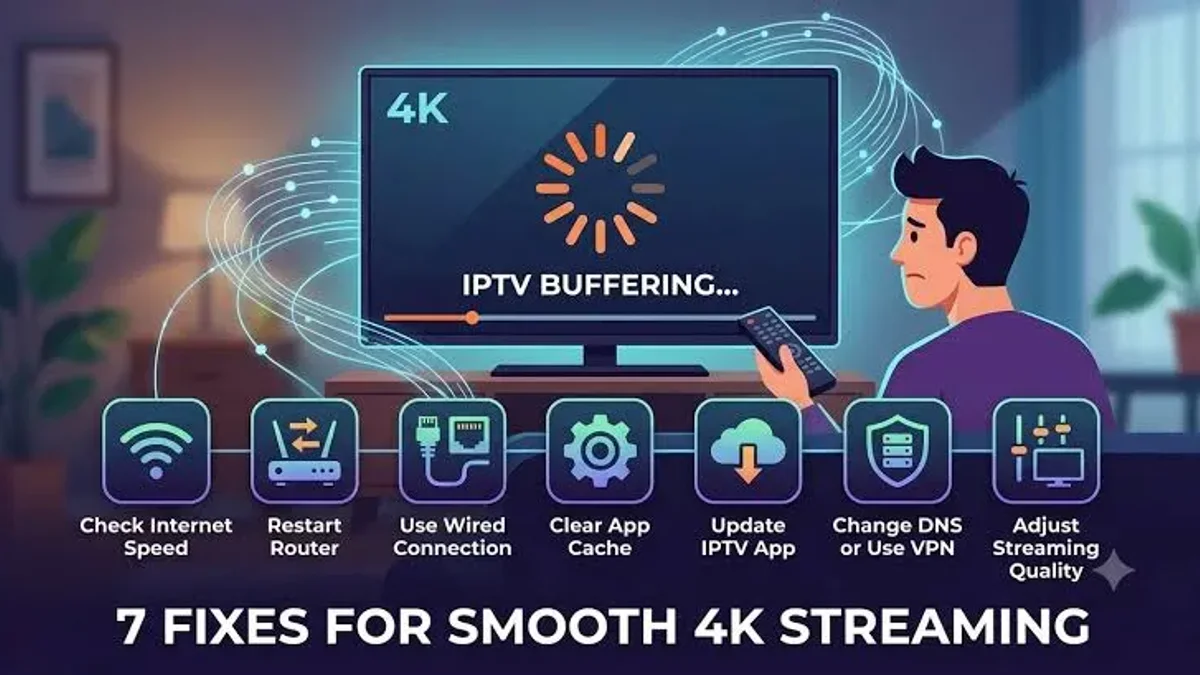
IPTV Works on One Device But Not Another: Full Diagnostic & Fix
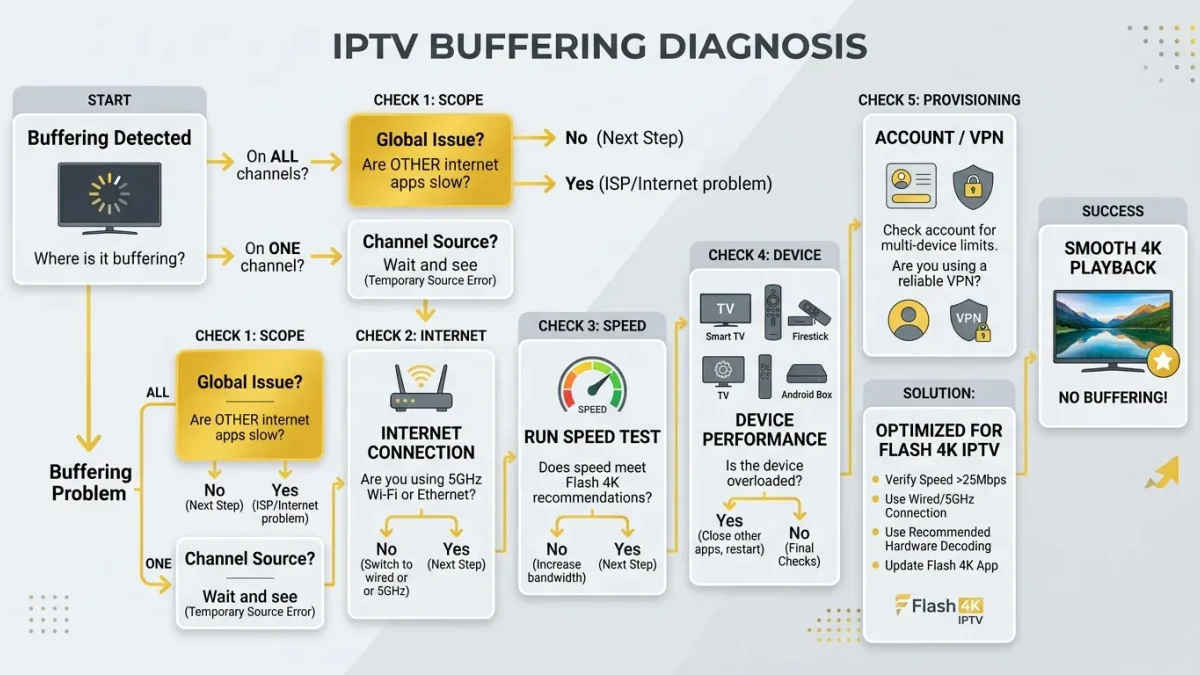
IPTV Works on One Device but Not Another: Complete Diagnostic and Repair Guide
Picture this common scenario: you launch your favorite IPTV application on your smartphone or desktop computer. You select a live 4K Premier League football match or an international news broadcast, and it loads in less than a second. The picture is crisp, the audio is in sync, and the stream plays for an hour without a single hiccup.
Encouraged by this flawless performance, you walk into your living room, turn on your large-screen Smart TV or Amazon Firestick, and open the exact same channel using the exact same subscription credentials on the exact same home Wi-Fi network.
Instead of smooth entertainment, you are met with disaster: the channel buffers endlessly, the video stutters into a pixelated slide show, the screen stays black while only sound plays, or the application throws an abrupt "Authentication Failed / Stream Error" code.
When an IPTV service functions flawlessly on Device A (such as an iPhone, Android smartphone, or Windows laptop) but fails miserably on Device B (such as a Samsung Smart TV, LG webOS display, or Amazon Firestick), it creates an infuriating mystery. Most subscribers instinctively conclude: "The IPTV app on my TV is broken" or "The provider is blocking my television."
In reality, cross-device playback discrepancies are the natural, predictable outcome of significant technical differences between consumer electronics. Even though both devices share the same login credentials and connect to the same living room router, they operate on completely different System-on-Chip (SoC) hardware decoders, Wi-Fi antenna configurations, operating system network stacks, audio licensing chipsets, and player software rendering engines.
In this comprehensive technical diagnostic and repair guide, we dismantle the exact reasons why IPTV streams perform inconsistently across different devices, analyze the five primary engineering culprits responsible for device-specific playback failures, provide an actionable 6-phase remediation sequence, and deliver platform-specific configuration fixes for Samsung Tizen, LG webOS, Amazon Fire TV, Android TV, and Apple tvOS.
Stream 2026 NFL Games in 4K & 60FPS
Get instant access to over 50,000 live sports channels, 120,000+ movies & series, and 24/7 priority sports coverage across all your favorite devices.
1. The Principle of Isolation: Why "Identical Networks" Aren't Identical
To troubleshoot cross-device streaming failures effectively, you must first discard the assumption that two devices located in the same room experience identical network and hardware conditions.
``` ┌────────────────────────────────────────────────────────────────────────┐ │ THE CROSS-DEVICE HARDWARE GAP │ ├────────────────────────────────────────────────────────────────────────┤ │ │ │ DEVICE A: MODERN SMARTPHONE / LAPTOP (Streams Flawlessly) │ │ • Processor: High-end Octa-Core SoC (Apple A17 / Snapdragon 8 Gen 3) │ │ • RAM: 6GB to 16GB High-Speed LPDDR5 RAM │ │ • Wi-Fi Antenna: 2x2 MIMO Wi-Fi 6E/7 with direct line of sight │ │ • Codec Engine: Full Hardware Decoders for HEVC Main 10, AV1, VP9 │ │ • Result: 4K 60fps video renders effortlessly with 5% CPU usage │ │ │ │ DEVICE B: BUDGET SMART TV / STREAMING STICK (Freezes & Errors) │ │ • Processor: Cost-optimized Quad-Core SoC clocked at 1.2–1.7 GHz │ │ • RAM: 1.0GB to 1.5GB (Heavily saturated by TV operating system) │ │ • Wi-Fi Antenna: 1x1 SISO antenna buried behind metal TV chassis │ │ • Codec Engine: Weak or un-licensed hardware decoders (Interlacing) │ │ • Result: 100% CPU saturation, memory exhaustion, severe buffering │ │ │ └────────────────────────────────────────────────────────────────────────┘ ```
When an iPhone, a high-end Android phone, or a PC laptop connects to an IPTV stream, it possesses:
- Enormous Computational Headroom: Modern flagship smartphones feature processors that rival desktop computers in raw floating-point operations. Their GPUs decompress high-bitrate 4K 60fps video feeds without breaking a sweat.
- Superior Radio Frequency Antennas: Mobile devices feature advanced multi-band MIMO (Multiple-Input, Multiple-Output) wireless antennas engineered to maintain stable throughput even through physical obstacles.
- Deep System Memory: With 6GB to 16GB of system RAM, a smartphone can easily allocate hundreds of megabytes of high-speed memory to an IPTV player's jitter buffer.
In sharp contrast, televisions and budget streaming sticks are engineered to hit aggressive retail price points. A $300 Smart TV or a $30 streaming stick often features:
- A bare-minimum quad-core processor.
- Only 1GB to 1.5GB of total system RAM (over 70% of which is consumed by the TV manufacturer's operating system and background telemetry).
- A single, inexpensive 1x1 SISO Wi-Fi antenna physically positioned behind the television's metal chassis and internal heat sinks, creating substantial signal attenuation.
When you feed a heavy, uncompressed 25 Mbps 4K 60fps sports stream into both devices, the smartphone handles the stream effortlessly, while the Smart TV processor is pushed beyond its physical engineering limits.
2. Root Cause 1: Silicon & Video Decoder Disparities (SoC Architecture)
The most prevalent technical reason why a channel plays smoothly on your phone but stutters or shows a black screen on your television involves the System-on-Chip (SoC) video decoding pipeline.
Hardware vs. Software Video Decompression
Video transmitted over the internet is compressed using complex mathematical transform algorithms (codecs) such as H.264 (AVC), H.265 (HEVC), or AV1.
When video packets enter a device, they must be decompressed into raw pixel matrices at a rate of 60 frames every second:
- Hardware-Accelerated Decoding (HW): If the device's silicon chip contains dedicated, physically hardwired circuits specifically engineered for that exact codec profile (e.g., HEVC Main 10 profile at Level 5.1), the hardware decoder processes the video instantly with virtually zero CPU utilization.
- Software Emulation Decoding (SW): If the device lacks a dedicated silicon decoder for that specific profile, the media player must force the device's general-purpose CPU cores to calculate and render every pixel using software code.
The Interlaced Video Trap (1080i vs. 1080p)
A major point of failure on Smart TVs and budget streaming sticks involves interlaced broadcast television feeds (1080i).
- Many traditional satellite and cable sports networks (such as regional sports networks, European football feeds, and American broadcast affiliates) transmit in 1080i (interlaced) format rather than 1080p (progressive).
- Modern smartphone operating systems (iOS and Android) feature advanced software de-interlacing shaders that convert 1080i fields into smooth 60fps progressive frames in real time.
- Many built-in Smart TV media engines (particularly on older Samsung Tizen and LG webOS models) do not support hardware de-interlacing within third-party IPTV apps. When fed a 1080i stream, the TV's processor attempts software de-interlacing, exhausts its CPU capacity, and freezes within seconds—even though your smartphone plays the identical channel flawlessly!
The Audio Codec Handshake Failure
In numerous cases, an apparent "video freeze" on a Smart TV is actually an audio licensing failure.
- High-definition sports channels frequently broadcast audio in multi-channel Dolby Digital Plus (E-AC-3) or DTS.
- Smartphones natively include software licenses to decode and downmix Dolby Digital Plus audio into stereo headphone sound.
- Many Smart TVs running third-party IPTV apps (like IBO Player or Nanomid) require the audio stream to be passed directly through to an external soundbar via HDMI ARC/eARC. If the TV's internal software cannot decode E-AC-3 and no soundbar is connected, the player's internal audio pipeline deadlocks. Because video and audio must remain synchronized, the entire stream halts, resulting in a black screen or an infinite loading circle.
3. Root Cause 2: Wi-Fi Antenna Differences and Band-Steering Traps
Even when both devices are in the same room, their physical connection to your home wireless network can differ dramatically.
``` ┌────────────────────────────────────────────────────────────────────────┐ │ THE LIVING ROOM WI-FI BAND-STEERING TRAP │ ├────────────────────────────────────────────────────────────────────────┤ │ │ │ DUAL-BAND HOME ROUTER │ │ (Single SSID: "Home_Network") │ │ │ │ │ ┌───────────────┴───────────────┐ │ │ ▼ ▼ │ │ 5 GHz High-Speed Band 2.4 GHz Congested Band │ │ (Fast, 0% Packet Loss) (Slow, High Jitter, Congested) │ │ │ │ │ │ ▼ ▼ │ │ [SMARTPHONE IN HAND] [SMART TV ON WALL] │ │ • Direct line of sight to router • Metal TV chassis blocks 5GHz │ │ • Band-steering assigns 5GHz • Router forces TV onto 2.4GHz! │ │ • Speed: 450 Mbps | Jitter: 1ms • Speed: 12 Mbps | Jitter: 45ms │ │ • STREAM PLAYS PERFECTLY! • STREAM BUFFERS & FREEZES! │ │ │ └────────────────────────────────────────────────────────────────────────┘ ```
The Metal Chassis Shielding Effect
Consider where your devices are physically situated while streaming:
- When using a smartphone or tablet, you hold the device in your hands in an open room with an unobstructed line of sight to your router.
- Your Smart TV or Amazon Firestick is mounted flat against a wall, completely enclosed behind a massive sheet of metal television chassis, internal glass layers, power supply shielding, and copper heat sinks.
This dense metal structure acts as a partial Faraday shield, attenuating wireless radio frequencies—particularly high-frequency 5 GHz Wi-Fi signals, which have short wavelengths and struggle to penetrate dense obstacles.
The Automated Band-Steering Trap
Most modern mesh routers and ISP gateways use a feature called Band Steering, which broadcasts a single Wi-Fi network name (SSID) for both the 2.4 GHz and 5 GHz bands:
- Because your smartphone has powerful antennas, the router detects a strong signal and connects the phone to the ultra-fast, interference-free 5 GHz band. The stream receives full bandwidth with zero packet loss.
- Because your Smart TV or Firestick is shielded behind the TV, its signal strength appears slightly weaker to the router. The router's automated band-steering algorithm mistakenly demotes the TV down to the crowded, high-interference 2.4 GHz band.
- On the 2.4 GHz band, the television competes with household Bluetooth signals, smart lightbulbs, and neighboring Wi-Fi networks. Jitter spikes to 50 milliseconds, packet loss climbs to 5%, and the IPTV stream repeatedly freezes—while your phone sitting on the coffee table right next to the TV continues streaming flawlessly on 5 GHz!
4. Root Cause 3: Operating System & Software Engine Discrepancies
Another critical variable is the fundamental difference in the software architecture running on each device.
| Operating System | Dominant IPTV Players | Internal Playback Engine | App Stability & Codec Support |
|---|---|---|---|
| Android TV / Google TV | TiviMate, XCIPTV, IPTV Smarters | ExoPlayer / MediaCodec | Exceptional (Industry Benchmark) |
| Amazon Fire OS | TiviMate, IPTV Smarters Pro | ExoPlayer / MediaCodec | Very High (Requires memory management) |
| Apple tvOS / iOS | Smarters Lite, iSTB, UHF | AVPlayer / VLCKit | Extremely High (Fluid 60fps UI) |
| Samsung Tizen OS | IBO Player, Smart STB, Nanomid | Tizen WebAVPlayer API | Moderate (Hardware codec limits) |
| LG webOS | IBO Player, Smart STB, IPTV Smarters | webOS Media Pipeline | Moderate (Memory limitations) |
| Windows / macOS | IPTV Smarters for PC, VLC, Kodi | LibVLC / DirectX / Metal | Near Unlimited (Desktop CPU power) |
The Dominance of Android TV and ExoPlayer
Applications developed for Android TV (such as the renowned TiviMate IPTV Player) utilize Google's advanced ExoPlayer video rendering framework. ExoPlayer includes sophisticated adaptive buffer management, dynamic audio stream switching, and native integration with Android's low-level hardware decoders. It is robust, handles packet drops gracefully, and recovers from network jitter without stalling.
The Limitations of Smart TV Web Engines (Tizen & webOS)
In contrast, applications built for Samsung Tizen and LG webOS are essentially web applications packaged in a lightweight wrapper running on modified HTML5/JavaScript browser engines:
- They rely on the television manufacturer's proprietary media player APIs (e.g., Tizen WebAVPlayer).
- These APIs are notoriously strict regarding streaming protocol standards. If an IPTV stream has a minor syntax irregularity in its HLS manifest, or uses a non-standard audio sample rate, an Android TV app will automatically correct the error and keep playing, whereas a Samsung or LG Smart TV app will immediately throw a fatal "Playback Error: Stream format not supported" and crash.
5. Root Cause 4: Subscription Concurrency Limits and "Ghost Sessions"
One of the most frequent reasons for sudden, unexpected failures when moving from one device to another is the Active Connection Lock.
``` ┌────────────────────────────────────────────────────────────────────────┐ │ THE GHOST CONNECTION LOCKOUT CYCLE │ ├────────────────────────────────────────────────────────────────────────┤ │ │ │ STEP 1: You watch IPTV on your phone during your evening commute. │ │ Stream runs flawlessly. │ │ │ │ STEP 2: You arrive home and exit the app by pressing the Home button.│ │ CRITICAL ISSUE: The phone OS suspends the app in RAM, │ │ leaving the TCP streaming socket ACTIVE on the server! │ │ │ │ STEP 3: You turn on your living room Smart TV and click the channel. │ │ │ │ STEP 4: The server receives the TV's connection request. │ │ The server checks account concurrency: │ │ "Connection 1 (Phone) is STILL ACTIVE. Max Allowed: 1." │ │ │ │ STEP 5: SERVER REJECTS THE SMART TV REQUEST! │ │ Result on TV: Error 401, "Account in Use", or 30s Freeze! │ │ │ └────────────────────────────────────────────────────────────────────────┘ ```
How Subscription Concurrency Works
Unless you have specifically purchased a multi-connection subscription package, most standard IPTV subscriptions include one active connection at a time.
When an IPTV server streams a channel to Device A:
- It registers Device A's IP address and session token as the active stream.
- If you finish watching on your phone and simply press your phone's Home button or lock your screen, the streaming app is placed into background sleep mode by iOS or Android.
- However, the underlying TCP network socket between your phone and the server often remains open as a "ghost connection" for three to ten minutes until the server's keep-alive timer expires.
- If you immediately launch the IPTV player on your living room Smart TV and attempt to stream, the server detects two concurrent active requests on a single-stream account.
- Depending on the server's security rules, it will either immediately reject the Smart TV with an
Error 401: Unauthorizedmessage, terminate the stream after exactly 20 seconds, or cause both devices to buffer continuously as they fight over the single active data stream.
6. Root Cause 5: Device-Level DNS, VPNs, and Firewall Restrictions
A final critical difference between mobile devices and Smart TVs lies in their localized network security and DNS configurations.
Apple Private Relay and Android Private DNS
Modern smartphones frequently have privacy security layers enabled by default:
- Apple Private Relay (on iOS): Automatically routes certain web and media requests through encrypted Apple proxy relays, inadvertently bypassing regional ISP blocks.
- Android Private DNS: Automatically routes domain lookups through encrypted DNS-over-TLS (DoT) providers like Google or Cloudflare.
If your ISP is attempting to block or throttle IPTV streaming servers, your smartphone may bypass the restriction automatically because of its built-in encrypted DNS resolver.
Meanwhile, your Smart TV—which connects directly through your ISP's raw, unencrypted default DNS servers—is intercepted by the ISP's filtering firewall, resulting in a black screen or connection timeout!
7. The 6-Phase Master Diagnostic Roadmap
To resolve cross-device playback failures systematically, follow this step-by-step diagnostic workflow:
``` ┌────────────────────────────────────────────────────────┐ │ CROSS-DEVICE TROUBLESHOOTING ROADMAP │ ├────────────────────────────────────────────────────────┤ │ │ │ Phase 1: Terminate Ghost Connections on Working App │ │ ▼ │ │ Phase 2: Perform Parallel Speed & Jitter Benchmark │ │ ▼ │ │ Phase 3: Separate Wi-Fi Bands & Force 5GHz / LAN │ │ ▼ │ │ Phase 4: Calibrate Video Decoder (HW vs SW) on TV │ │ ▼ │ │ Phase 5: Disable Audio Passthrough (Fix Black Screen)│ │ ▼ │ │ Phase 6: Align DNS to Cloudflare (1.1.1.1) on TV/Router│ │ │ └────────────────────────────────────────────────────────┘ ```
Phase 1: Eliminate Active Ghost Connections
Before modifying any hardware settings, rule out concurrency lockouts:
- On the device that was working (e.g., your smartphone or PC): Open the IPTV app, press the Back button repeatedly until the app asks "Do you want to exit?", and click Yes.
- Go into your smartphone's App Switcher (multitasking view) and swipe the IPTV app away completely to kill the process.
- Wait two full minutes for the server to recognize the closed socket and clear your active connection token.
- Now open your IPTV player on your Smart TV or Firestick and attempt to launch the channel. If it plays smoothly, your issue was an active ghost session lock.
Phase 2: Run a Parallel Speed and Jitter Benchmark
Determine whether the failing device is suffering from wireless signal degradation:
- On the working device (Phone/PC): Open a browser, navigate to fast.com, click "Show more info", and record your Download Speed, Unloaded Latency, and Loaded Jitter.
- On the failing device (Smart TV / Firestick): Open the Silk browser or TV browser and run the exact same test on fast.com.
- Compare the results:
- If your phone registers 300 Mbps with 2ms jitter, but your Smart TV registers only 14 Mbps with 48ms jitter, your television is trapped on a degraded 2.4 GHz wireless connection or is suffering from physical chassis shielding.
Phase 3: Enforce 5 GHz Wi-Fi or Hardwire the Failing Device
If Phase 2 revealed a wireless bottleneck on your television:
- Log into your home router's settings dashboard.
- In the Wireless settings, disable Band Steering and separate your network into two distinct names (e.g.,
HomeNetwork_2.4GandHomeNetwork_5G). - On your Smart TV or Firestick, go to Network Settings, forget the old Wi-Fi network, and connect exclusively to
HomeNetwork_5G. - Superior Solution: Connect a physical Cat 6 Ethernet cable directly from your router to your TV or Firestick (using an official Ethernet adapter). A wired line immediately eliminates all wireless packet drops and RF interference.
Phase 4: Calibrate the Video Decoder on the Failing Device
If channels load with stuttering video or audio-only:
- Open your TV's IPTV player settings (TiviMate, IPTV Smarters, or IBO Player).
- Locate the Video Decoder setting under Playback:
- If set to Software (SW), change it to Hardware (HW).
- On modern Android TV or Firestick devices, test Hardware Plus (HW+) or ExoPlayer.
- On Samsung Tizen or LG webOS apps, test toggling between the player's internal web player engine and native hardware player.
Phase 5: Disable Audio Passthrough to Resolve Black Screens
If the channel plays sound but displays a pitch-black screen:
- In your TV player's settings, navigate to Audio Settings.
- Locate Audio Passthrough and set it to OFF.
- Set the default audio output to Stereo (PCM).
- This instructs the player to downmix multi-channel Dolby Digital audio into universal stereo internally, preventing audio handshake lockups that freeze the video display.
Phase 6: Align DNS Resolvers on the Television
Ensure your TV is not blocked by ISP DNS filtering:
- On your Smart TV or Firestick, open Network Settings > Configure Network.
- Switch IP settings from DHCP to Static (or Manual).
- Leave your IP Address, Gateway, and Subnet Mask unchanged, but change the DNS addresses:
- Primary DNS:
1.1.1.1(Cloudflare) - Secondary DNS:
8.8.8.8(Google)
- Primary DNS:
- Save and reboot your device. This guarantees that domain queries to streaming servers resolve at lightning speed without ISP interference.
8. Platform-Specific Fixes Matrix
Implement these targeted fixes tailored specifically to your television's native operating system:
1. Amazon Fire TV & Firestick Fixes
- Install the HDMI Extender: Never plug your Firestick directly into the back of your television chassis. Use the included flexible HDMI extension cable to position the stick away from your TV's heat dissipation vents, preventing thermal throttling.
- Force Wall Power: Disconnect the Firestick from the TV's USB service port and plug it into a wall electrical outlet using the original Amazon AC power brick to eliminate low-voltage CPU throttling.
- Clear App Cache Regularly: Go to Settings > Applications > Manage Installed Applications > [Your IPTV App] and click Clear Cache.
2. Samsung Smart TV (Tizen OS) Fixes
- Perform a Cold Reboot: Turning off a Samsung TV with the remote merely places it into standby sleep mode. To perform a true cold reboot that flushes TV RAM: hold down the Power button on the Samsung remote for 5 to 8 seconds until the Samsung logo appears on the screen, or unplug the TV from the wall outlet for 60 seconds.
- Reset Smart Hub: If apps continue throwing network errors, navigate to Settings > Support > Self Diagnosis > Reset Smart Hub to clear corrupt web certificates.
3. LG Smart TV (webOS) Fixes
- Disable Quick Start+: LG's Quick Start+ feature keeps apps frozen in RAM when the TV is powered off, preventing IPTV apps from establishing clean streaming sockets upon boot. Navigate to Settings > General > Devices > TV Management and turn Quick Start+ OFF.
- Run Memory Optimizer: Go to Settings > Support > Device Self Care and run the Memory Optimizer to purge dormant background memory.
4. Apple TV 4K (tvOS) Fixes
- Match Frame Rate & Dynamic Range: Open tvOS Settings > Video and Audio. Turn Match Dynamic Range to ON and Match Frame Rate to ON. This allows Apple TV to automatically switch your television's refresh rate between 50Hz and 60Hz to match the native broadcast frame rate of the channel, eliminating 3:2 pulldown micro-stuttering.
9. Diagnostic Matrix: Symptoms, Root Causes & Confirmed Remedies
| Observable Cross-Device Scenario | Probable Root Cause | Confirmed Engineering Solution |
|---|---|---|
| Plays on Phone, but TV says "Error 401 / Account Expired" | Active Ghost Connection on Phone | Force-close mobile app, wait 2 mins, re-open on TV |
| Plays on PC, but TV shows black screen with audio playing | Audio Passthrough Handshake Deadlock | In TV player, toggle Audio Passthrough to OFF |
| Plays on Phone, but TV video is jerky and drops frames | Decoder Mismatch / Interlaced 1080i feed | Switch TV Video Decoder from Software to Hardware (HW) |
| Plays on Phone, but TV buffers every 20 seconds on Wi-Fi | TV trapped on congested 2.4 GHz Wi-Fi band | Separate router bands, connect TV strictly to 5 GHz or LAN |
| Plays on Mobile Data, but fails on both Phone & TV on home Wi-Fi | ISP DNS Filtering or Gateway Blocking | Change Router DNS to 1.1.1.1 or deploy a WireGuard VPN |
| Plays on Firestick in Bedroom, but fails on Smart TV in Living Room | Tizen/webOS App API Protocol Strictness | Switch Stream Output Format from HLS to MPEG-TS (.ts) |
10. The Ultimate Solution: Adding a Dedicated Streaming Device
If you are struggling to stream IPTV reliably using your Smart TV's built-in application (on Samsung Tizen or LG webOS), the most cost-effective and permanent upgrade you can make is to bypass the TV's internal software entirely.
Why Dedicated Streaming Sticks Outperform Native Smart TVs
Built-in Smart TV operating systems are notoriously underpowered, receive infrequent firmware updates, and lack access to the world's most advanced IPTV software (such as TiviMate).
By plugging an affordable external streaming device—such as an Amazon Fire TV Stick 4K Max, an Onn 4K Pro, or an Apple TV 4K—into one of your television's HDMI ports:
- You gain access to dedicated hardware decoders capable of running high-bitrate 4K 60fps streams effortlessly.
- You can install top-tier IPTV players with custom buffer controls, multi-view 4-screen capabilities, and automated EPG scheduling.
- You eliminate the memory constraints and web-engine quirks of native TV operating systems forever.
For comprehensive instructions on setting up external devices, explore our detailed IPTV device setup and installation guide.
Frequently Asked Questions
Final Thoughts and Next Steps
Experiencing seamless playback on your smartphone while your living room television struggles can be baffling, but the solution is straightforward once you address the underlying hardware, decoder, and network disparities. By eliminating ghost sessions, hardwiring your TV or forcing a 5 GHz wireless connection, switching decoders to Hardware (HW), and disabling audio passthrough, you can bring your large-screen streaming experience up to the same flawless standard as your mobile device.
To ensure your home entertainment is backed by enterprise-grade infrastructure:
- Explore our high-stability, multi-connection subscription plans on our pricing page.
- Browse our complete directory of 50,000+ live global channels and 4K sports feeds.
- Follow our step-by-step device installation guide for platform-specific player setups.
- Have questions or need assistance diagnosing a specific device? Reach out to our technical support team 24/7 through our contact page for personalized help.
![Frixplay IPTV – IPTV vs Streaming Services: Complete Cord-Cutting Guide [2026]](/blog/iptv-vs-streaming-services.webp)